Unleashing Your PC's Full Potential: A Deep Dive into Bottleneck Checkers
Ever found yourself staring at your computer screen, wondering why your brand-new graphics card isn't giving you those silky-smooth frame rates you expected? Or maybe you've upgraded your CPU, only to find your gaming performance hasn't budged much? Well, my friend, you're likely encountering what we in the tech world affectionately call a 'bottleneck.' It's a pretty common issue, honestly, and something I've certainly grappled with over the years.
What Exactly Is a PC Bottleneck, Anyway?
So, what are we even talking about here? Imagine your PC as a team of components all working together to achieve a task, let's say, running a demanding video game or rendering a complex 3D model. Each component – your CPU, GPU, RAM, and even your storage drive – has a specific role and a certain level of performance. A bottleneck occurs when one of these components can't keep up with the others, effectively slowing down the entire system. It's like having a super-fast highway with one lane that's much narrower than the rest; traffic's going to get backed up there, no matter how wide the other lanes are.
You see, your PC's overall performance is only as good as its weakest link. It doesn't matter if you've got the latest, most powerful graphics card money can buy if your CPU from a decade ago can't feed it data fast enough. That high-end GPU will just be sitting there, twiddling its thumbs, waiting for instructions, leading to lower-than-expected frame rates or choppy performance. Identifying these bottlenecks is absolutely crucial if you want to optimize your system and make sure you're getting the most bang for your buck.
Why Do We Even Care About Bottlenecks?
Honestly, understanding bottlenecks is about efficiency and value. You're investing your hard-earned money into these components, right? You want to ensure they're all pulling their weight. If you're upgrading one part of your PC, say the GPU, without considering how it interacts with your existing CPU or RAM, you might just be throwing money away because the new component won't be able to perform at its best. It's a fundamental concept for anyone who's serious about PC building, upgrading, or just getting the best performance out of their current rig. It's also super helpful for troubleshooting performance issues. If a game is stuttering, knowing if your CPU or GPU is the limiting factor can point you straight to the solution.
The Usual Suspects: Common Types of Bottlenecks
When it comes to PC performance, a few key players often take the spotlight as potential bottlenecks. Let's break down the most common ones.
The CPU Bottleneck
Ah, the Central Processing Unit. This is often the brains of the operation. A CPU bottleneck happens when your processor simply isn't powerful enough to handle all the calculations and instructions that your other components, especially the GPU, demand. This is really common in CPU-intensive games or applications, or when you pair an older, weaker CPU with a very modern, powerful GPU. The GPU might be capable of rendering thousands of frames per second, but if the CPU can only prepare data for a few hundred, well, you're stuck at that lower limit.
The GPU Bottleneck
Conversely, a Graphics Processing Unit bottleneck occurs when your GPU can't keep up with the demands placed upon it. This usually happens when you're trying to play a very graphically intensive game at high resolutions (like 4K) or with ultra settings, and your graphics card just isn't powerful enough to render all those pixels fast enough. Your CPU might be perfectly capable of sending instructions, but the GPU is the one struggling to draw everything on your screen. This is probably the most frequently encountered bottleneck for gamers.
RAM Bottlenecks
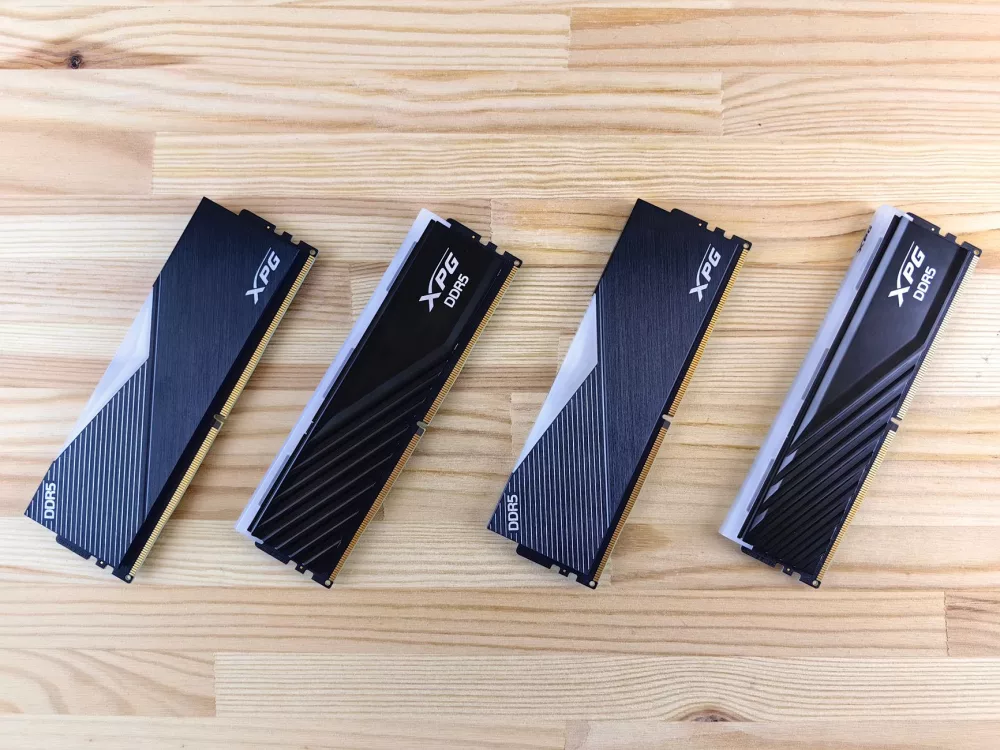
Memory, or RAM, is another big one. If you don't have enough RAM for the applications you're running, or if your RAM is too slow, it can certainly create a bottleneck. Your system will start relying on your much slower storage drive (paging file) to compensate, which introduces significant delays. Imagine trying to work at a desk with only a tiny amount of space; you'd constantly be putting things away and pulling them out of storage, wasting time.
Storage Bottlenecks
Finally, we've got storage. While not as common for in-game frame rates as CPU or GPU issues, a slow hard drive (HDD) can significantly bottleneck load times for games and applications, and even impact overall system responsiveness. Upgrading to a fast Solid State Drive (SSD) or even an NVMe drive can make a world of difference here, though it won't directly boost your in-game FPS once the game is loaded.
How Do We Find These Pesky Bottlenecks?
Identifying a bottleneck isn't always straightforward, but there are some excellent tools and methods we can use. I always tell people it's a bit like detective work.
Monitoring Software is Your Best Friend
This is where the real magic happens. Performance monitoring software allows you to see how your components are being utilized in real-time. Here are a few I often recommend:
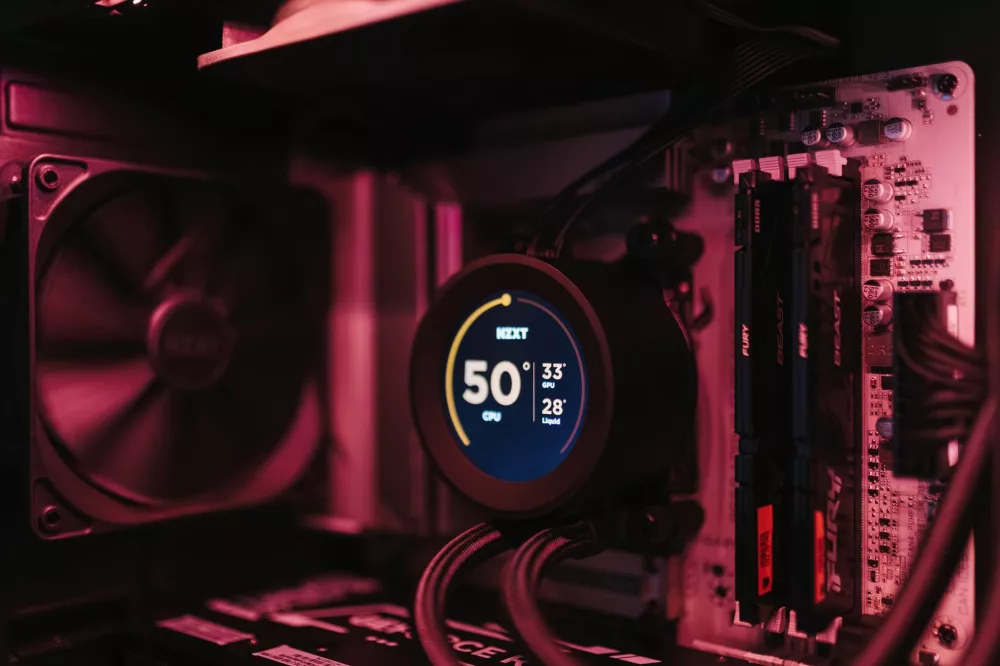
- MSI Afterburner (with RivaTuner Statistics Server): This is probably my go-to for gaming. It lets you monitor GPU usage, CPU usage (per core!), RAM usage, temperatures, and frame rates directly overlaid on your game screen. You can customize what information it displays, which is super handy. If you see your GPU usage consistently at 99-100% while your CPU usage is lower, you're likely GPU bottlenecked. If your CPU usage is high and your GPU usage is low, you're looking at a CPU bottleneck.
- HWMonitor: While not for in-game overlay, HWMonitor provides comprehensive readings of your system's voltages, temperatures, and fan speeds, alongside utilization percentages for CPU and GPU. It's a great tool for an overall system health check and can help confirm what Afterburner tells you.
- Task Manager (Windows): Don't underestimate the humble Task Manager! Under the 'Performance' tab, you can quickly see your CPU, GPU, RAM, and Disk utilization. It's a good starting point for a quick check, especially if you suspect a general system slowdown.
- Performance Monitor (Windows): This is a more advanced tool built into Windows. It offers extremely detailed logging capabilities, allowing you to track almost any performance counter over time. While a bit more complex to navigate, it's incredibly powerful for deep diagnostics.
Observing Gameplay and Application Performance
Sometimes, you don't even need software to get a hint. You just need to pay attention. If your game runs smoothly in less demanding areas but stutters horribly in crowded city scenes with lots of NPCs, that's often a sign of a CPU bottleneck. If changing graphical settings from 'Ultra' to 'High' makes almost no difference to your frame rate, that also points to a CPU limitation, because the GPU isn't the one holding things back. Conversely, if dropping resolution significantly boosts your FPS, your GPU is definitely working hard.
Online Bottleneck Calculators (with a grain of salt!)
You've probably stumbled upon these online tools that claim to calculate your bottleneck percentage. My advice? Use them as a very rough guide, a starting point for discussion, but don't take their numbers as gospel. They use generalized data and don't account for specific game engines, individual component conditions, or your unique software environment. They can give you an idea of potential incompatibilities between extremely disparate components, but they are far from definitive.
How to Deal with a Bottleneck When You Find One
Okay, so you've identified your bottleneck. What now? You've got options, depending on what the problem is.
- Upgrade the Bottlenecked Component: This is often the most straightforward, but also the most expensive, solution. If your CPU is holding back your high-end GPU, a CPU upgrade (which often entails a new motherboard and RAM) might be in order. If your GPU is struggling, a newer, more powerful graphics card is probably what you need.
- Adjust Settings: This is the cheapest and quickest fix. If your GPU is the bottleneck, lowering graphical settings like resolution, anti-aliasing, shadow quality, or texture detail can significantly improve performance. If your CPU is struggling in a particular game, look for settings like 'crowd density' or 'physics quality' that might be CPU-bound.
- Overclocking: If you're comfortable with it, and your components support it, carefully overclocking your CPU, GPU, or even RAM can squeeze a bit more performance out of them. Be aware, this comes with risks and can void warranties, so proceed with caution and research!
- Optimize Software: Sometimes, it's not purely hardware. Make sure your drivers are up to date. Close unnecessary background applications. Ensure your operating system is optimized for performance. These small tweaks can sometimes make a surprising difference.
Remember, a perfectly balanced system is kind of an ideal, not always a reality. There will almost always be *some* component limiting performance more than others at any given moment. The goal isn't to eliminate all bottlenecks (that's practically impossible and incredibly expensive), but rather to identify and alleviate the ones that are severely impacting your desired performance, especially for the tasks you care about most, like gaming or professional applications. Understanding this stuff truly empowers you to make smarter upgrade decisions and get the most out of your rig. It's a learning curve, but a very rewarding one.
About Editorial Team
Senior columnist and culture critic specializing in architectural designs, emerging high-growth systems, and contemporary philosophies.